31 Mar, 2026
They Fixed the Football Manager 2026 UI
Is the FM26 UI finally fixed? We’ve found the secret to restoring the classic layout you miss. Discover how to get the old-school look back.
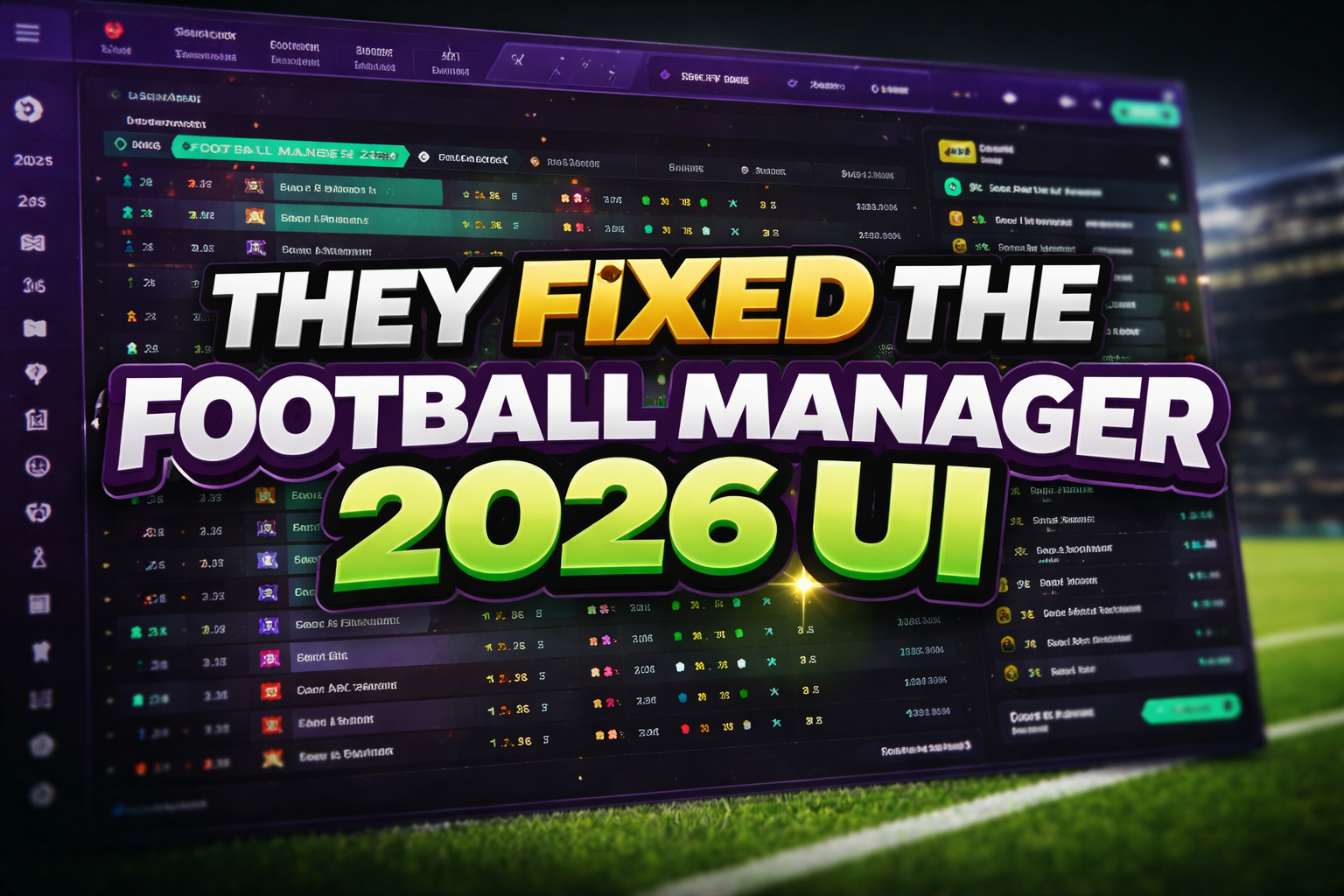
Football Manager 2026’s UI has been getting pelters for months, to put it mildly. However, thanks to a new video from Zealand, there is finally a bit of hope for anyone who has spent the last few months clicking through menus for hours at a time praying that it eventually starts to make sense.
In the video from Football Manager’s biggest creator right now, Zealand shows off three standout FM26 skins created by modders who have somehow managed to do what a lot of players assumed was basically impossible. Make this year’s interface look better, feel cleaner and, most importantly, become less of a pain in the neck to actually use.
So if you have been waiting for the community to do what the base game didn’t, good news: they have.
Here are the three skins Zealand highlighted, why they are worth downloading and how to install them without accidentally sending your long-term save to the shadow realm.
The three FM26 skins worth trying right now
The first is the excellent Material Skin 26 by budwaiser4, which is probably the one that will appeal most to players who just want FM26 to feel more like Football Manager again. It has a cleaner layout and a more familiar look. A general sense that somebody actually thought about how humans process information. A rare luxury in this year’s UI. Zealand was especially taken by how much easier certain screens were to read and that is really the big selling point here. Material does not feel like a gimmick skin.
The second is CTRL 26 by MW90, which goes harder in its own direction. It is brighter, smoother and less boxed-in than the default UI, which is welcome because FM26’s menus sometimes look like they were assembled out of leftover kitchen tiles. If your main issue with the game is how chunky and rigid everything feels, this is the one that looks most likely to fix that.
Then there is ASF Skin for FM26, which is the most dramatic of the lot. This is a full-scale renovation. It changes far more of the presentation. Including parts of the in-match experience and feels like the option for players who want to go all in.
To summarise, Material is the “make FM26 playable” option, CTRL is the “make FM26 look modern” option and ASF is the “right, we’re ripping everything out” option.
How to install FM26 skins
Before going any further, this article owes a nod to Zealand and the modders. Zealand does a good job of showing these skins in action and walking viewers through the awkward reality of installing FM26 skins in the first place. That is important because this is not the old days, where you dropped a folder into a skins directory and went on with your life. FM26 has made the process much more fiddly than previous games. More importantly, it also shines a light on the modders doing the actual heavy lifting here.
This is the bit most people actually need, because FM26 skinning is not nearly as straightforward as it used to be. First things first: back up your files. If you are on Steam and things go wrong later, you can verify the integrity of your game files and restore the original setup. However, it is still smarter to make your own backup first. If you care about your save files, back those up too.
Step one: download the skin you want
Download one of the following:
Extract the downloaded archive once it has finished.
Step two: find your FM26 game directory
For most Windows users, the relevant folder will be:
Steam\steamapps\common\Football Manager 26\fm_Data\StreamingAssets\aa\StandaloneWindows64\
If you are on Mac, the path can differ depending on the skin, but Material and CTRL both support macOS according to their FM Scout pages. ASF is much more Windows-focused in its install notes, so Windows users will have the easier ride there.
Step three: make a backup of the original files
Create a backup folder somewhere safe and copy the original files you are about to replace into it. Zealand recommends keeping a separate folder just for this, and he is right. It is much easier to undo things cleanly if you know exactly what you changed.
If you want to be extra safe, also back up your saves from your Sports Interactive documents folder.
Because there are only two types of Football Manager player: those who back up their saves, and those who eventually learn why they should have.
Installing Material Skin 26
Material is one of the more straightforward options.
Once extracted, open the downloaded folder and head into the Windows or Mac section depending on your platform. Copy the included files into your Football Manager 26 game directory and replace the original files when prompted. That is it.
Launch the game again and the new skin should be active. If it is not, double-check that you copied the files into the correct folder and replaced the right originals.
Material is also one of the safer bets right now because it has already been updated to work with the winter update and hotfix 26.2.0, which is exactly the kind of thing you want to see with FM26 skins given how easy it has been for patches to break them.
Installing CTRL 26
CTRL follows a similar general process.
Download it, extract it, and then copy the skin files into the correct Football Manager 26 directory, replacing the originals after making your backup. It is supported on both Windows and macOS, and its current version is listed as compatible with the FM 26.2 hotfix.
If you are planning to test multiple skins, do yourself a favour and keep tidy backup folders for each stage. Zealand’s approach of restoring the previous set before trying the next one is sensible.
Installing ASF Skin
ASF is the more advanced one.
According to its FM Scout page, you can install it through FM Skin Builder, but it can also be installed manually. The manual method involves taking files from the skin’s packages folder and placing them into the StandaloneWindows64 folder, replacing the originals. Two specific bundle files for player photos also have to be manually replaced even if you are using FM Skin Builder:
- ui-styles_assets_default.bundle
- ui-tiles_assets_all.bundle
The page also explicitly warns users to back up the original game files first, which should tell you everything you need to know about how forgiving this process is not.
So yes, ASF looks brilliant but it is the one for players happy to do a bit more folder-diving to get there.
Important warnings
Only use skins that are confirmed to work with the latest major FM26 update. If they are not updated for the current version, there is a real chance they will crash the game or break parts of the interface. That is just the current reality of trying to mod FM26’s UI.
Also, if anything goes wrong and you are on Steam, verifying your game files can restore the originals.
Finally, if you are swapping between multiple skins, do not just paste random files on top of other random files and hope for the best. That is how people end up on forum threads typing in all caps.
Conclusion
FM26’s UI was one of the game’s biggest failings and the fact modders have found ways to improve it is a testament to their ability and effort. Players clearly wanted something cleaner, more usable and more customisable. The community has responded because the game itself didn’t adequately. That is the slightly embarrassing part for Sports Interactive.
Still, if the end result is a better-looking and more usable version of Football Manager 2026, most players probably will not care who fixed it. They will just be glad somebody finally did.
If FM26’s interface is driving you up the wall, these three skins are the best place to start.
(There are also other skins available, so make sure you check those out)
Check out our Feature Articles section for more FM26 Updates and Tips.